Threats and quarantine
See detected threats, clean them up, or restore a file you trust from quarantine.
In this article
Every threat that Microsoft Defender or Padideban finds is recorded here: which file, where it was, how severe it is, and what was done about it. Quarantined files are kept in a state where they can’t run, so they can’t do any harm.
Where in the app Tools Threats & quarantine
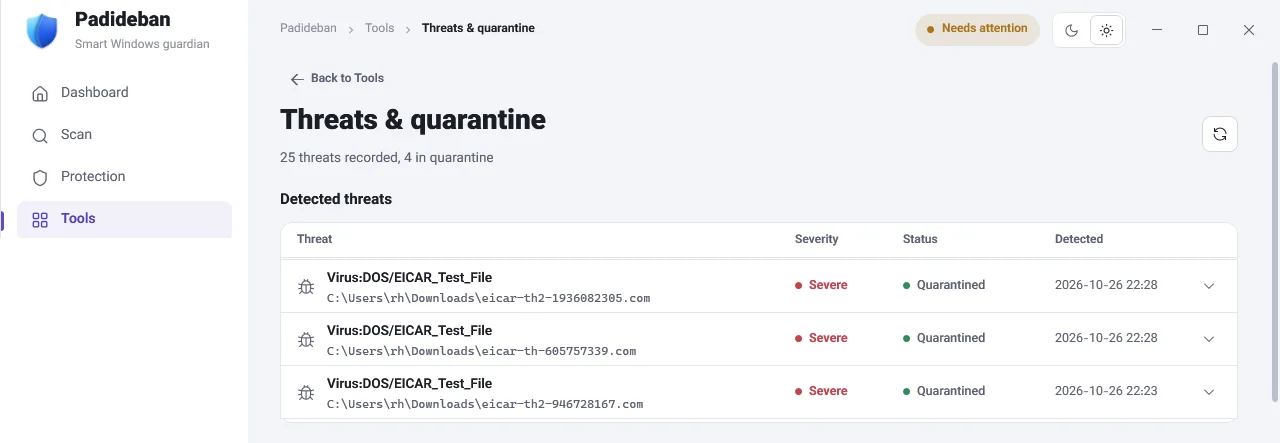
Reading each row
- Threat name
- The name Defender gave it, such as Trojan:Win32/….
- “Severity”
- From low up to “Severe”.
- Status
- “Quarantined” (isolated and unable to run), “Removed”, or active (nothing has been done yet).
- “Detected” and “Process”
- When it was found, and which program created or ran it. This helps you work out where the infection came from.
Cleaning active threats
If a threat is still active, click “Clean active threats” and confirm in the “Clean threats” message. Defender quarantines or removes all active threats. This is available in the Free version too.
Restoring a file from quarantine
Sometimes a clean file is quarantined by mistake, for example a program you wrote yourself. To get it back:
- Find the item in the “Quarantine” list.
- Click “Restore from quarantine”.
- In the “Restore from quarantine” message, click “Restore”. The message “Restored.” means the file is back where it was.
Allowing a threat
If you’re deliberately keeping a program that Defender treats as a threat, find it under “Detected threats”, click “Allow”, and confirm in the “Allow threat” message. From then on, that item won’t trigger a warning.