What it does
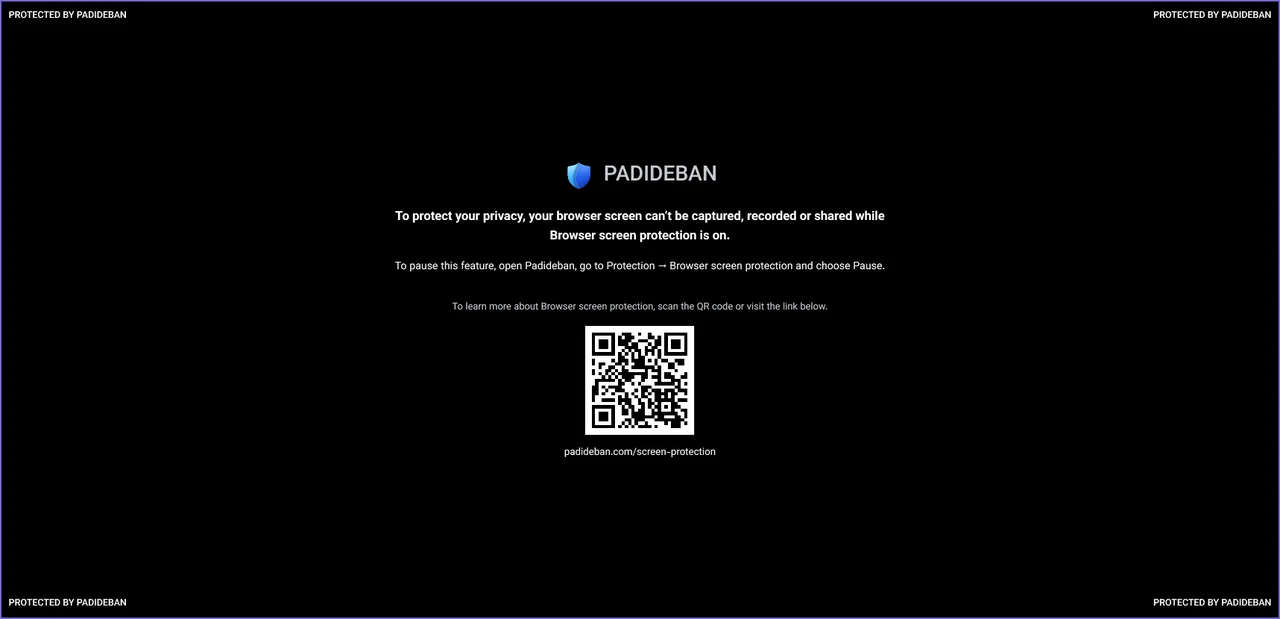
Spyware and remote-control tools usually take pictures or videos of the whole screen to see your passwords, account balance or messages. With Browser screen protection on, those captures only show the Padideban notice.
Likewise, if you share your whole screen in an online meeting, others see this notice instead of your browser, while other apps’ windows appear normally.
Supported browsers
Chrome, Edge, Firefox, Brave, Opera, Vivaldi and Yandex.
Turning it on
Where in the app Protection Browser screen protection
Turn on the “Browser screen protection” switch. The same switch is also under Settings → Protection modules. The feature is off by default.
Taking a screenshot of your browser yourself
If you want to capture your browser yourself (for example, a payment receipt) or show it in a meeting, click “Pause 10 minutes” or “Pause 1 hour” on the same page. When the time is up, the protection turns back on by itself.
When you open a screenshot tool (such as Snipping Tool or Win+Shift+S), Padideban shows a notification with a “Pause 10 minutes” button.
Limitations
Browser screen protection blocks full-screen screenshots and recordings, screen sharing and remote-control tools. It doesn’t stop a program that captures the browser window itself directly, or an extension that captures the page from inside the browser.
And of course it can’t stop someone photographing the screen with a phone.