How to tell if a bank website is fake: check the link before you open it
How to tell if a bank website is fake: read the address, spot six common link tricks, and check any link before opening it with Padideban's free link checker.
In this post
To tell if a bank website is fake, ignore how the page looks and read its address: the real owner of a page is the last part of the domain name, and one changed letter there means you are somewhere else. Padideban's free Banking anti-phishing page does that reading for you. You paste a link, and it tells you what looks wrong before you open it.
Why fake bank pages work
A fake bank page almost never starts in your browser. It starts with a message. The U.S. Federal Trade Commission describes the usual story: the message looks like it comes from a company you know, says there is a problem with your account or a payment, and asks you to click a link to fix it.
The message is built to rush you. The UK's National Cyber Security Centre lists the levers: authority (it claims to be your bank), urgency (a short deadline), emotion, scarcity and current events. Spelling mistakes are no longer a reliable sign: CISA notes that AI-written messages can have perfect grammar.
A scammer can copy a logo and a layout in minutes, but cannot use your bank's real domain. That makes the address your best clue.
How to tell if a bank website is fake: read the address
These are the most common tricks. The example addresses are made up and written so they can't be clicked.
- The real name at the front. In
yourbank.com.secure-login[.]net, the owner issecure-login[.]net. Read a domain from the end. - One changed letter.
yourbanck[.]comoryour-bank-support[.]comis a different site fromyourbank.com. - Look-alike letters. Some letters from other alphabets look the same as Latin ones. The Chromium project's documentation gives the example of a Cyrillic "а" used in place of a Latin "a". Browsers try to show such names in a raw form starting with
xn--, but not in every case. - The "@" trick. In
yourbank.com@203.0.113[.]7/login, everything before the @ is decoration. The real destination comes after it. - Numbers instead of a name. A bank does not ask you to sign in at a bare IP address.
- A shortened link. A short link hides where it goes. CISA lists untrusted shortened links as a warning sign.
Two more points:
- A padlock is not a verdict. Google's Chrome Help explains that the secure symbol means the connection is private, and still advises care with sensitive information and checking the site name in the address bar. Fake sites can have a padlock too.
- The page itself may look perfect. Microsoft's phishing guidance says small things give a copy away, such as outdated logos, typos, or a sign-in page asking for information the real site never asks for.
The safest habit is simple: don't use the link at all. Open your bank's app, or type the bank's address yourself.
What Padideban's Banking anti-phishing checks
Sometimes you still want to know what a link is. Paste it and Padideban reads the address the way a careful person would:
- the "@" trick and look-alike letters from other alphabets;
- an IP address used instead of a domain name;
- an unusually long chain of subdomains that pushes the real domain out of view;
- a link that directly downloads an Android app (APK) or a Windows program;
- a page that claims to be for payment or banking but sits on a free hosting service, or uses plain
http; - a domain that is on Padideban's digitally signed list of reported phishing sites;
- a shortened link, with a Show destination (without opening) button that asks only the shortening service where the link leads. The destination page itself is never opened.
You get a verdict (phishing, suspicious, or no signs found) and the reasons in plain words. The check runs on your computer. The link is not sent anywhere.
An honest note about limits. Padideban also compares addresses against a built-in list of bank and service names, to catch one-letter imitations. That list was built for one region and will not include most banks elsewhere, so your own bank is probably not on it, and a few advice lines in the result refer to that region's payment gateway. Outside that list, the checker relies on the structural tricks above. "No signs found" therefore means "no known trick in this address", not "this site is safe". No tool catches every fake, so the habit of typing the address yourself still matters.
How to check a link, step by step
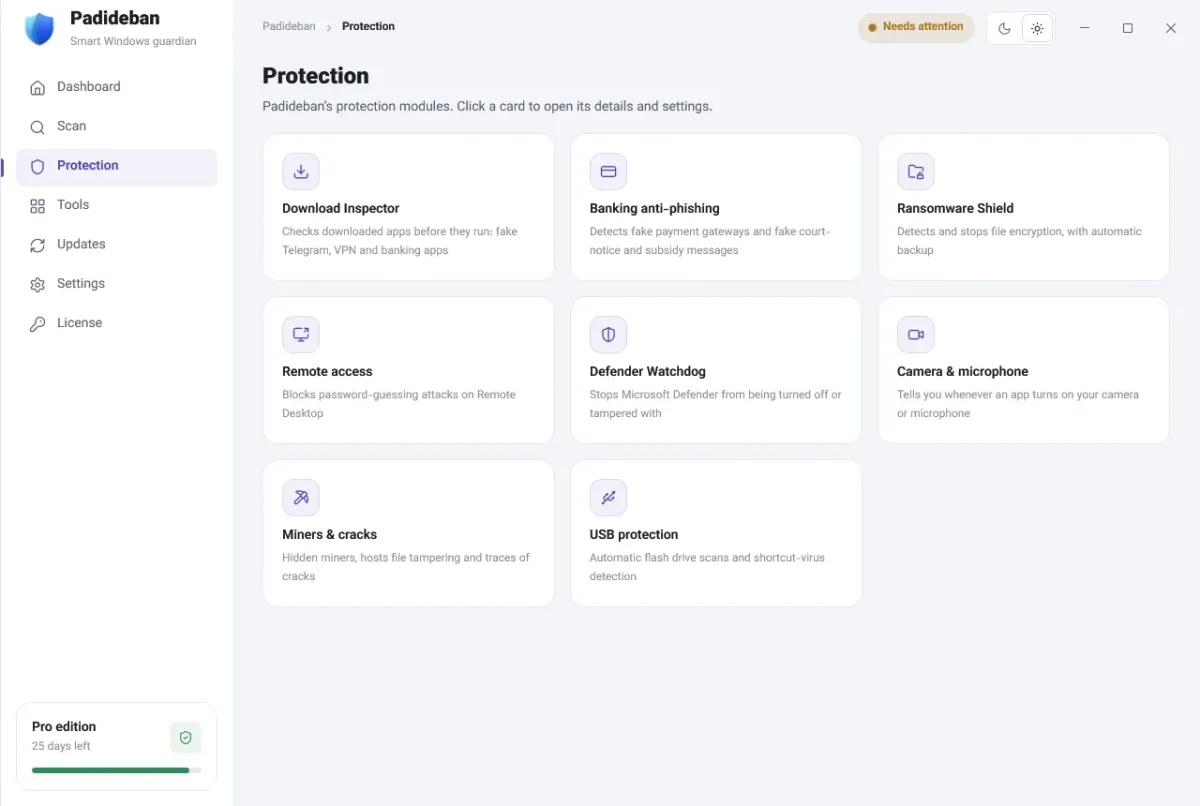
Banking anti-phishing is on by default after you install Padideban.
- Open Padideban, click Protection in the left menu, then click the Banking anti-phishing card.
- In the message or email, copy the link without opening it.
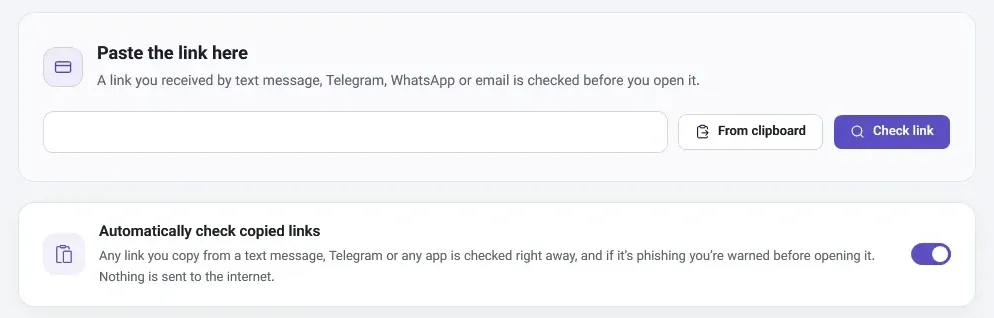
- Paste it into the Paste the link here box, or click From clipboard, then click Check link.
- Read the verdict and the reasons under it. For a dangerous link you can click Block this domain on this PC. After you confirm, that domain will not open in any browser on this computer. You can undo this at any time under Blocked domains with Unblock.
- Leave Automatically check copied links turned on. Any link you copy, from any app, is checked right away, and you see a warning such as "You copied a phishing link!" before you paste it into a browser.
The browser extension
The link checker sees links you copy or paste. It cannot see a page you open with a direct click inside the browser. For that, the same page has a Padideban browser extension card. It lists the browsers on your PC, shows where the extension is missing, and has an Install button that opens the browser's official store. Nothing is installed without you.
The extension is free. It blocks ads and intrusive pop-ups, and it blocks sites on Padideban's signed phishing list before they load. Its checks run inside the browser, and the addresses of the sites you visit do not leave your computer. That list is curated and conservative, so keep your browser's own protection (Google Safe Browsing or Microsoft Defender SmartScreen) turned on. The extension works next to it, not instead of it.
For every button on the page, see the Banking anti-phishing help article.
Is it free?
Yes. Banking anti-phishing, the automatic check of copied links, domain blocking and the browser extension are all part of the free edition. Padideban works together with Microsoft Defender, which stays your main antivirus engine. You can download Padideban and compare editions in Free vs Pro.
If you already typed your details
It happens to careful people too. Act in this order, as Microsoft's guidance also advises:
- Call your bank using the number printed on your card, and ask them to block the card or watch the account.
- Change the password you typed, and change it anywhere else you use the same one.
- If the page made you download something, don't open it. If you did, run a scan. A related guide: how to check a downloaded file before it runs.
Frequently asked questions
Does a padlock mean the bank website is real?
No. The padlock means the connection between you and the site is private. It says nothing about who owns the site. Always read the domain name.
Does Padideban send my links to a server?
No. The link check runs on your own computer. The only network request is the one you ask for with Show destination, and it goes to the link shortener, not to the destination site.
The result says "No signs of banking phishing found". Is the site safe?
Not necessarily. It means the address shows none of the tricks the checker knows. If the page asks for card details or a one-time code and you didn't start the payment yourself, close it and contact your bank directly.
Sources
- Federal Trade Commission: How To Recognize and Avoid Phishing Scams (September 2022)
- National Cyber Security Centre (UK): How to spot a scam email, text message or call (published November 26, 2021; reviewed September 5, 2022)
- CISA: Recognize and Report Phishing (undated)
- Microsoft Learn: How to protect against phishing attacks (July 2, 2026)
- Google Chrome Help: Check if a site's connection is secure (undated)
- Chromium Docs: Internationalized Domain Names (IDN) in Google Chrome (undated)