General settings
Language, start with Windows, the right-click menu and self-protection.
In this article
All of Padideban’s settings are on one page. The side column has six sections: “General”, “Defender protection”, “Protection modules”, “Scan & schedule”, “Exclusions” and “Attack surface (ASR)”. This article covers the “General” section.
Where in the app Settings General
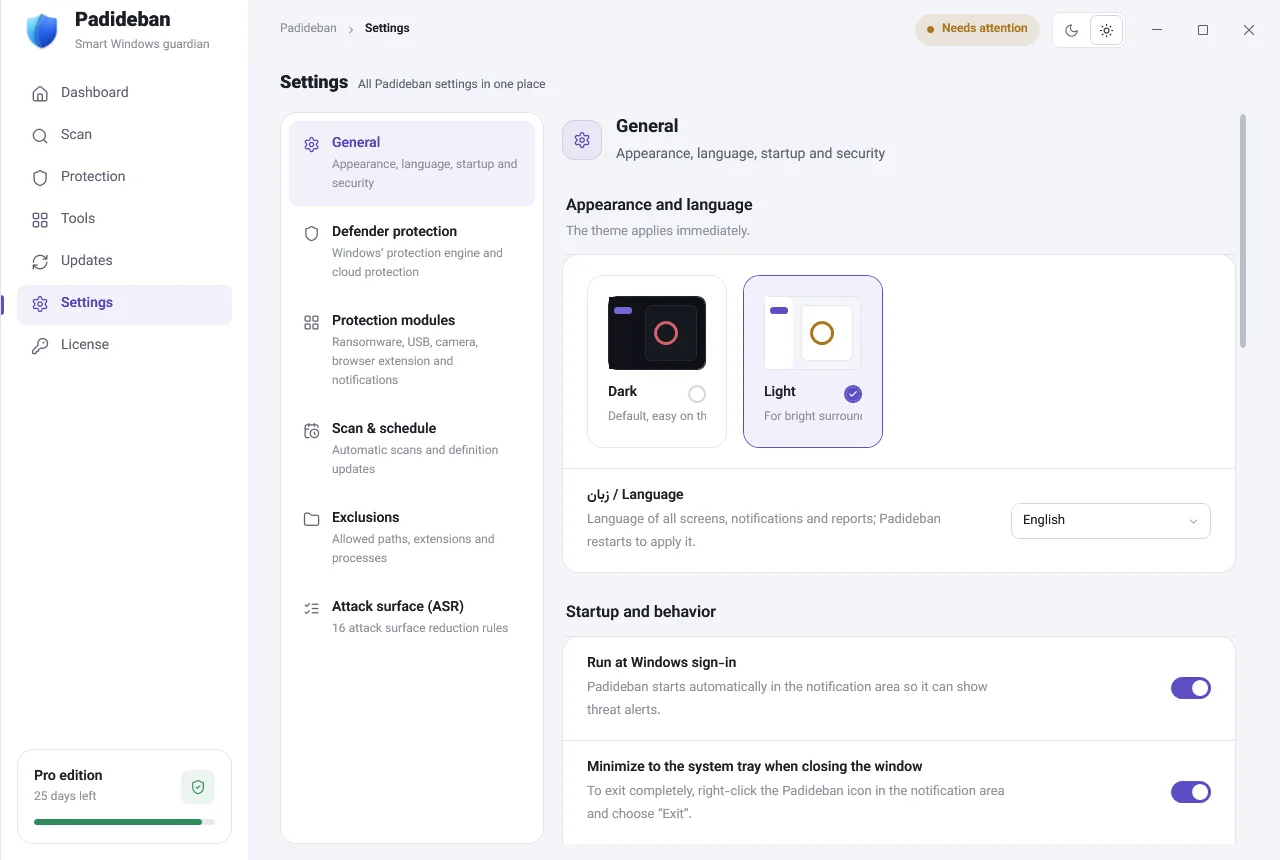
The “General” card
- “Language”
- Persian or “English” for all screens, notifications and reports. Padideban restarts to apply the language; choose “Restart now” or “Later”.
- “Run at Windows sign-in”
- Padideban starts automatically in the notification area so it can show threat alerts. We recommend leaving this on.
- “Minimize to the system tray when closing the window”
- Closing the window doesn’t quit the app. To exit completely, right-click the Padideban icon in the notification area and choose “Exit”.
- “Instant notification when a threat is detected”
- As soon as Defender detects a threat, a notification is shown.
- “Scan with Padideban” right-click menu
- Adds a scan option to the right-click menu in File Explorer. Scan with a right-click
- Hide “Scan with Microsoft Defender”
- Removes Defender’s duplicate option from the menu. Defender’s own settings don’t change.
Self-protection
With “Self-protection” turned on, malware or another user can’t close Padideban from Task Manager; any attempt to close it gets “Access denied”.
Other cards on this page
- “Quiet / game mode” and “Lock settings with an admin password”: covered in a separate article.
- “App updates and server”: “Check for a new version” and “Download automatically in the background”. Change the server address only if support or your organization’s network administrator tells you to, then click “Save and test connection”.
- “About Padideban”: the app version and an “Open Windows Security” button.