Update virus definitions and the app
How and when new virus definitions and new versions of Padideban are installed.
In this article
Two things need to stay up to date: the virus definitions, so new threats are recognized, and the Padideban app itself. Both are on one page, and both can update automatically.
Where in the app Updates
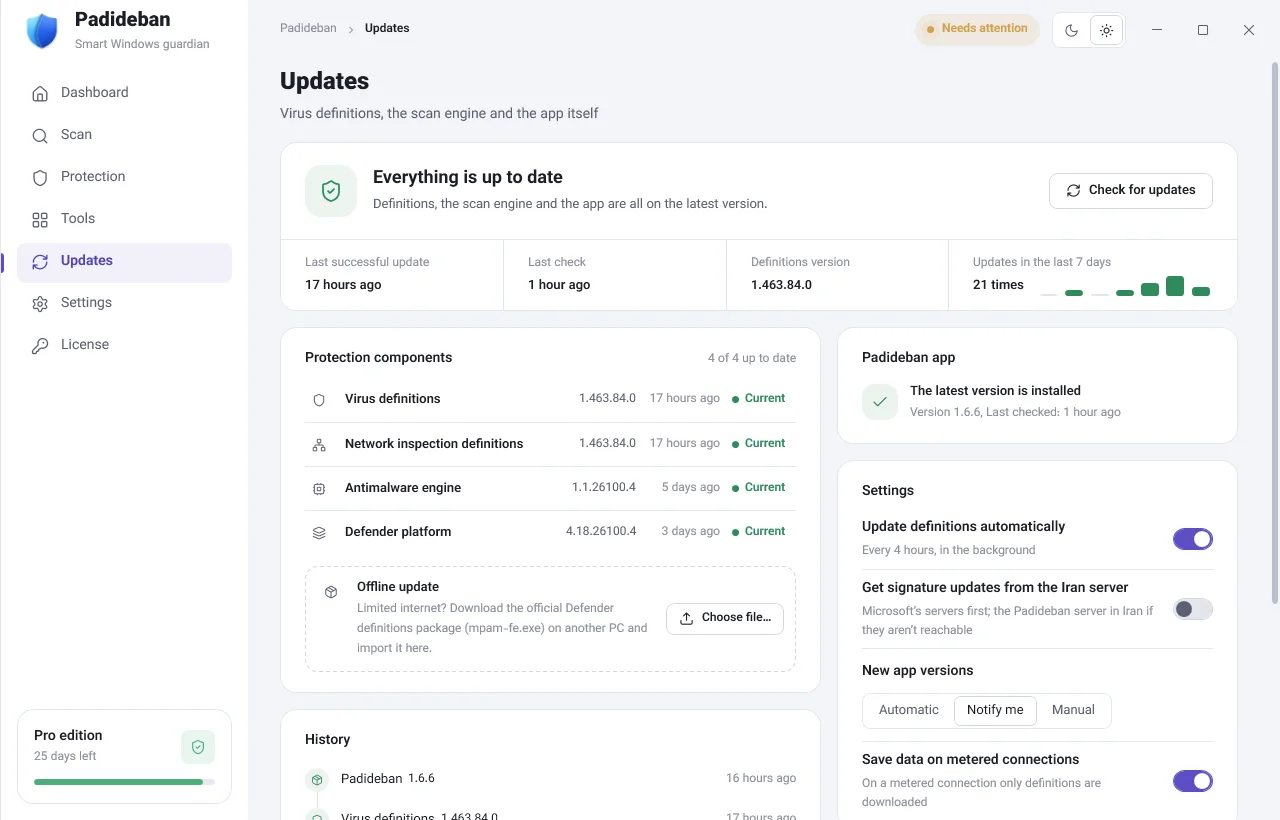
Status
The box at the top shows either “Everything is up to date” or the number of updates available. “Check for updates” checks the server right now, and “Update all” installs everything that’s ready in one go.
Virus definitions
The “Virus definitions” row shows the current version and when it was last downloaded, labeled “Current”, “Outdated” or “Downloading”. Below it you’ll also find the “Antimalware engine” and “Defender platform” versions.
- The check button (or Download, when the definitions are outdated) gets the definitions right away. While they download, you can also cancel.
- You can do the same from the notification area icon menu with “Update virus definitions”.
- No internet, or a limited connection? Under “Offline update”, click “Choose file…” to import the official Defender definitions package. The offline update page explains where to get it.
New Padideban versions
When a new version is out, the “Padideban app” row says that a new version is available, and a bar with “View and install” appears at the top of every page.
- Click details and install. The “Padideban update” window shows the “New version”, the “Release date” and “What’s new in this version”.
- Click “Update now”. You can go back to what you were doing with “Continue in background”.
- Once the download finishes, “Restart and install” closes Padideban, installs the new version and starts it again.
“Remind me later” postpones the decision, and “Skip this version” stops asking about this version.
Automatic updates
The “Settings” card on the same page:
- “Update definitions automatically”
- On: virus definitions are downloaded in the background every 4 hours. Off: only on the default Windows schedule, which is usually daily.
- “New app versions”
- “Automatic”: new versions are downloaded and verified silently, and installed only with your permission. “Notify me”: you’re told about a new version, but nothing is downloaded. “Manual”: nothing is checked automatically; click “Check for updates” whenever you like.
- “Save data on metered connections”
- On a metered connection (such as mobile data) only definitions are downloaded; new app versions wait for a regular connection.
“History” at the bottom of the page lists every definition, Defender platform and app update with its date.